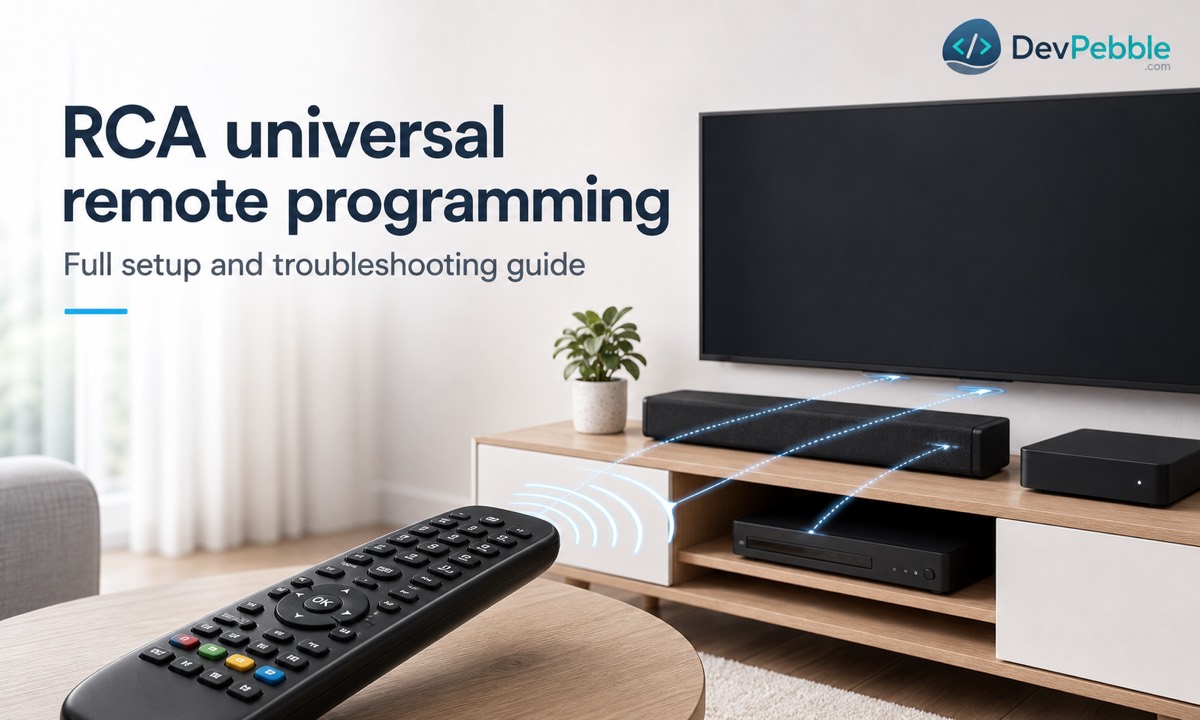
RCA universal remote programming: full setup and troubleshooting guide
RCA universal remote programming guide to direct code entry, automatic code search, TV setup, device compatibility, resets, and common troubleshooting fixes.
On this page⌄
- What RCA universal remote programming actually does
- What to gather before you start
- Finding your RCA remote's model and revision number
- The programming methods, compared
- Programming with a device code (direct code entry)
- Programming without a code
- Programming an RCA remote to a TV
- Programming other devices
- Codes by brand, and where to find them
- Saving and retrieving your working codes
- Controlling several devices with one remote
- How to tell whether programming worked
- Troubleshooting RCA universal remote programming
- Resetting an RCA universal remote
- The bottom line
- FAQ
When an RCA universal remote won't control your TV, soundbar, or cable box, the reason is almost always the same. It hasn't been told which device it's controlling yet. Out of the box, RCA remotes already work with most RCA, GE, and PROSCAN equipment, but anything else (a Samsung TV, a Vizio soundbar, a cable box from your provider) needs a device code first. Get that right and one remote can replace the pile on your coffee table. This guide covers how the remote works, how to find your exact model, every method RCA supports, and what to do when a code only half works.
What RCA universal remote programming actually does
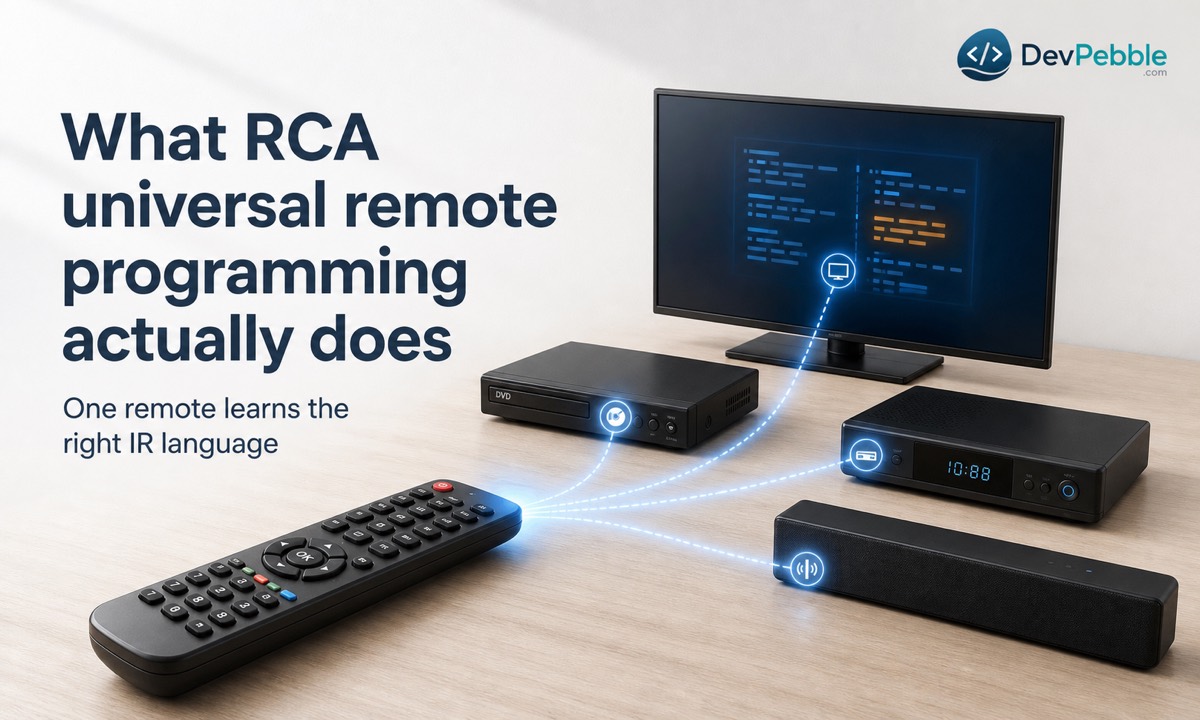
RCA universal remote programming is the process of setting up the remote to recognize and control a specific device, such as a TV, DVD player, or cable box, using a device code or an automatic search. Once programmed, it sends the right infrared signals for that device's brand and model, so one remote can stand in for several.
How the remote talks to your devices
RCA universal remotes work over infrared (IR), the same invisible light signal original manufacturer remotes use. The emitter on the front fires a pattern of pulses at your TV, soundbar, or cable receiver. Every brand, and often every model generation, uses its own pattern, which is why the remote has to be told which one to send. RCA puts it well in its manuals: each device has its own "language," and the right code teaches the remote to speak it.
Will it control every TV?
Mostly, but not completely. RCA remotes support a broad range of TV and smart TV brands, and basic functions like power, volume, and channel changes work on nearly all of them once the right code is set. The catch is that some smart TV features run over Wi-Fi, Bluetooth, or voice control rather than infrared, and those won't cross over. Opening a streaming app or using voice search usually still needs the TV's original remote. If you depend on a specific smart feature, check your TV's manual for IR support before counting on the RCA to replace everything.
What to gather before you start
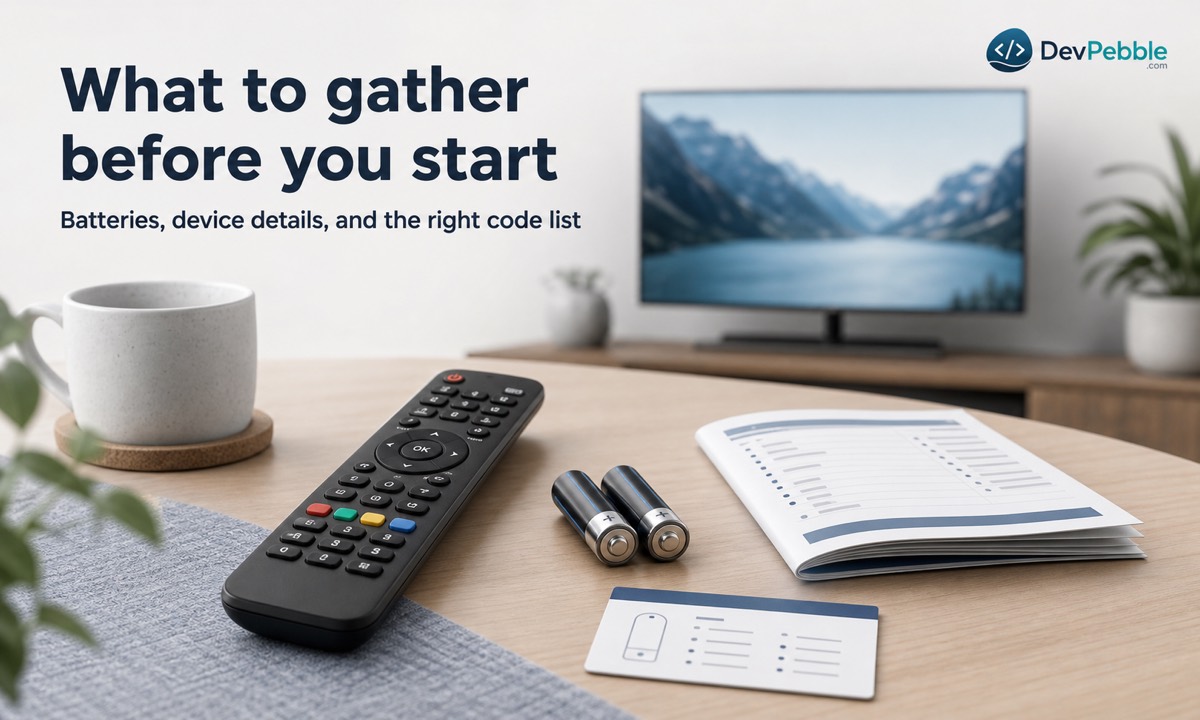
A couple of minutes of prep saves you from restarting halfway through. Before programming, have these ready:
- Fresh batteries in the remote
- The device you want to control, turned on
- Your RCA remote's model number and revision number
- The brand of the device (TV, DVD player, cable box, and so on)
- The code list for your remote, from the booklet in the box or RCA's online code finder
Weak batteries cause more failed attempts than almost anything else. A low battery can send an IR signal too faint to reach the device, which makes a good code look broken. Fresh batteries remove that doubt. And because most methods need the device powered on to confirm a hit in real time, turn it on first.
Finding your RCA remote's model and revision number
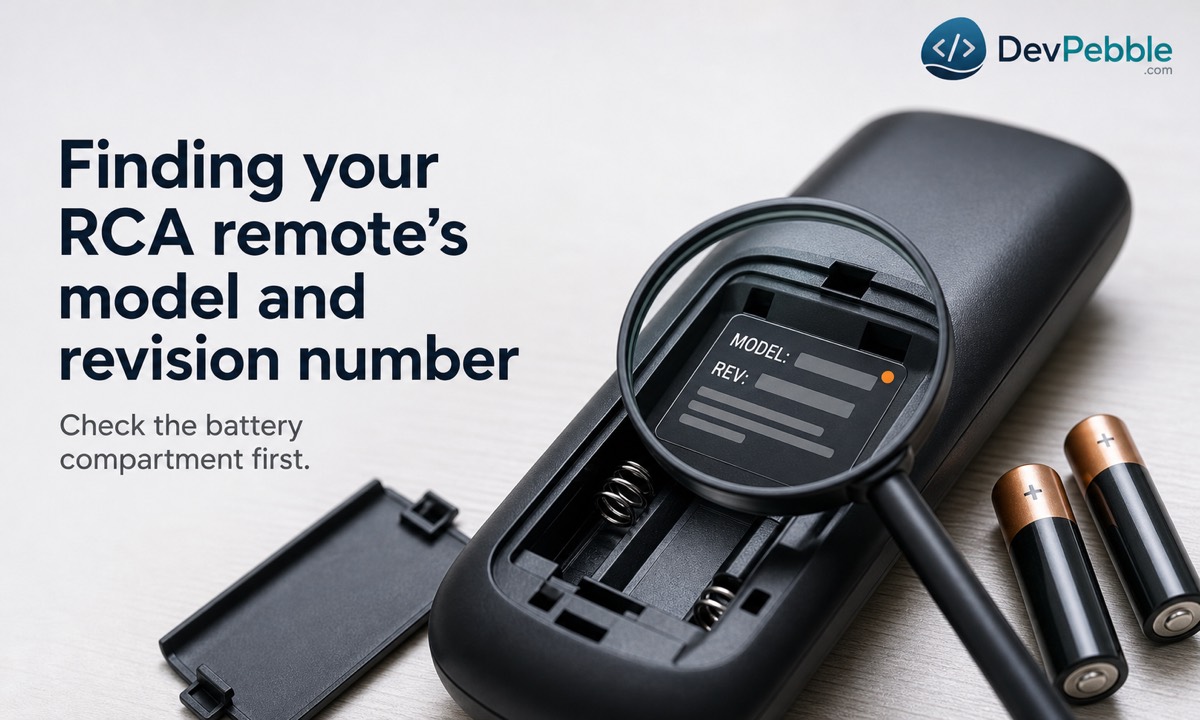
Programming steps and code lists differ from one RCA remote to the next, so identifying yours correctly matters most. Pop off the battery cover: the label inside lists the model number and a revision number. On RCA's code finder, the revision is a separate multi-digit code, usually five or six digits, sometimes with a letter prefix like R or D.
Why the revision number matters so much
RCA sometimes updates the internal steps or code list for a remote without changing how it looks. Two remotes that appear identical can use different button sequences or codes depending on their revision, and following instructions for the wrong one is a common reason a code gets rejected. Worth double-checking before anything else.
If the label is worn or missing
If the print has rubbed off, check the original box or your receipt, where the model number is often listed. Look inside the battery compartment too, since some models tuck the revision number in small text away from the main label. If it's genuinely gone, RCA's support site lets you match your remote by its general model line, and the code finder at global.rca.com can walk you through the right revision.
The programming methods, compared
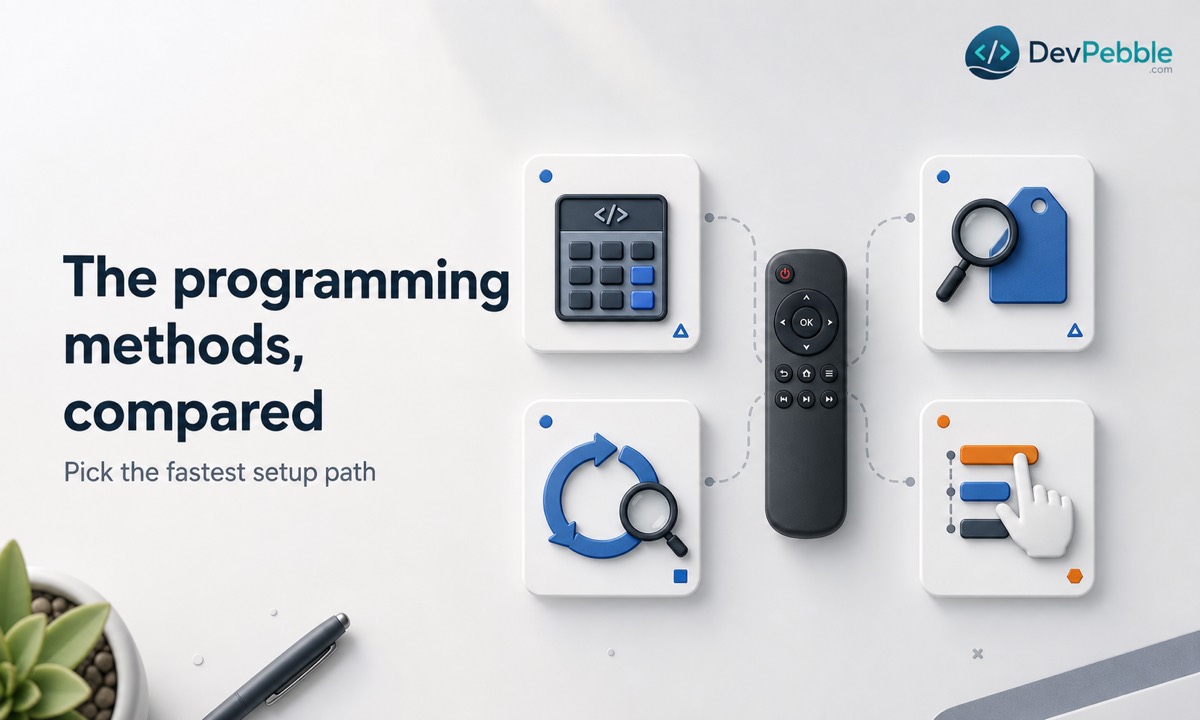
RCA remotes support four ways to program a device. It's worth knowing all four, because when one stalls, the next usually gets you there.
| Method | Best when | Code needed? | Difficulty | Why use it | |---|---|---|---|---| | Direct code entry | You already have the exact code | Yes | Easy | Fastest route when you know the number | | Brand code search | You know the brand but not the code | Brand code only | Easy to moderate | Skips unrelated brands' codes | | Auto code search | You know neither the code nor the brand | No | Moderate | Remote cycles through every code for you | | Manual code search | The other methods came up empty | No | More hands-on | Precise, step-by-step testing |
RCA suggests trying them roughly in that order. Once you know your revision, pick the one that matches what you already know about your device.
Programming with a device code (direct code entry)
This is the quickest method when you have the code in hand. The exact button sequence varies by model, so treat the steps below as the general shape and confirm the details against your remote's own instructions.
- Look up your device's brand in the code list for your specific model and revision. Don't borrow a generic list from elsewhere, since codes differ between revisions.
- Turn the device on. The remote needs a live response to confirm a working code.
- Press the device mode button that matches what you're setting up: TV, SAT/CBL, DVD, STRM (streaming), or AUX.
- Enter setup mode and type the code. Some RCA remotes acknowledge each step with a blinking indicator light; others want you to hold a Code Search or Setup button in a set order, and a few save the code only when you press a key such as STOP or ENTER. This is where revisions diverge, so follow your model's steps.
- Test power first, then volume, channel, and menu. If power works but nothing else does, the code is only a partial match.
When the first code doesn't fully work
It's normal for the first code to miss a few functions. Go back to the list, try the next code for your brand, and repeat. Brands often have several codes because different model years use different command sets, and the second or third often fills the gaps. Don't settle for a code that only handles power.
Programming without a code
No code booklet, or the numbers you tried didn't stick? Two search methods handle this.
Auto code search
Keep the device on and hold the remote pointed steadily at it. Once you start auto search, the remote works through its stored codes one at a time, sending a power-off signal with each try. The moment the device switches off, stop and save, because that's the code that matched. This takes longer than direct entry, depending on how many codes exist for that device type. The classic mistake is rushing past the moment the device responds, so watch closely and pause if you're unsure. Skip the right code and you can usually restart from the top.
Brand code search
Brand search sits between direct entry and full auto search. Instead of testing every code it knows, the remote narrows to one manufacturer, using a short brand code from your model's list. You enter setup, select the device button, key in the brand code, and save per your model's steps. When you know the maker but not the exact code, this is usually faster than auto search because it skips everything unrelated. One caveat: on some RCA models, brand search only works for TV, VCR, DVD, and SAT/CBL, not for audio, DVR, or HDTV, so check your manual if the option seems missing.
Programming an RCA remote to a TV
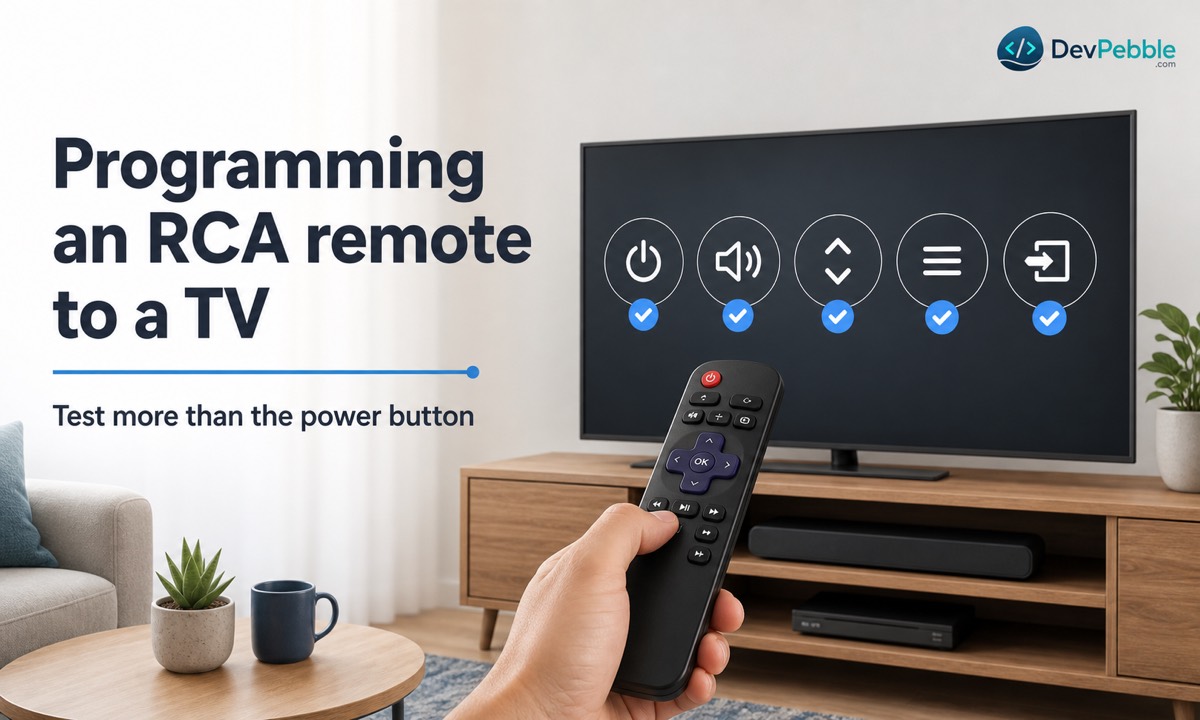
Whichever method you use, programming to a TV follows the same core steps. What changes is what you should expect afterward.
On a smart TV, count on power, volume, and channel working reliably once the code is right. The smart-only features, such as launching apps or voice search, generally aren't infrared and may still need the original remote. Older TVs without smart features tend to respond across the board, since everything they do runs on IR, and they're often easier to program fully than a new smart TV.
After programming any TV, run through the full set rather than stopping at power: power on and off, volume and mute, channel up and down, menu and the directional pad, and input or source switching. If most respond, you've got a solid code even if one minor button is missing.
Programming other devices
The same four methods apply to non-TV gear. Only the buttons you test afterward change.
For a cable or satellite box, use the SAT/CBL button and check channel changes, the guide, and DVR controls if it has them. For a DVD or Blu-ray player, use the DVD button and test play, pause, stop, and menu navigation. For a soundbar or audio receiver, program the AUX button and confirm volume and power, usually the core functions supported. Combo units like a TV/VCR often need a separate code per function, so program each to its own button.
Streaming players are the wild card. RCA sells dedicated remotes for Roku and Fire TV because many streamers lean on Wi-Fi or their own app instead of infrared. Some accept basic power and volume over IR, others nothing at all, so check your streamer's documentation before assuming any code will work.
Codes by brand, and where to find them
Big brands like Samsung, LG, Sony, Vizio, TCL, Hisense, Philips, Panasonic, Sharp, Toshiba, and Insignia usually have several RCA codes each, because different production years use different IR command sets under the same name. When more than one is listed, test them in the order given and keep whichever controls the widest range of functions, even if it isn't the first you try.
For a complete, current list, use RCA's official code finder or the booklet in the box. Third-party lists float around the web, but they're often outdated or mismatched to your revision, a fast way to end up chasing a code that was never going to work.
Saving and retrieving your working codes
Once a code works well, write it down next to the device it controls. Some RCA models include a code retrieval function that reports the code currently stored for a device mode, though not every model has it. Either way, a saved list pays off the next time you replace batteries in a way that clears memory, run a reset, or reprogram from scratch.
Controlling several devices with one remote
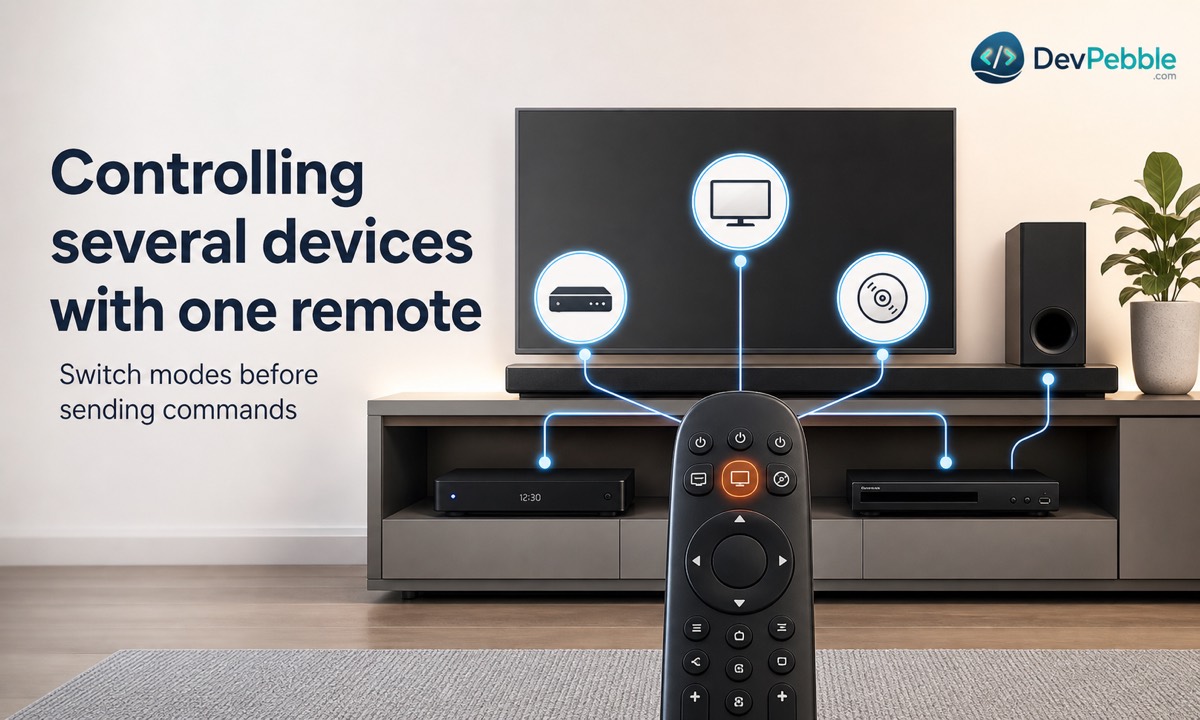
A typical setup assigns the TV button to the television, SAT/CBL to a cable box, DVD to a Blu-ray or DVD player, and AUX to a soundbar or receiver. Each button holds its own code. To control a device, press its mode button first, then use the remote normally. Forgetting to switch modes is probably the number-one reason a remote seems to "stop working" when it's really just aimed at the wrong device slot.
Many RCA remotes also offer volume punch-through, sometimes called volume lock, which routes volume to one preferred device even while another mode is active. It's handy when you want the TV buttons for picture but volume always going to the soundbar. The name and setup vary by model, so check your manual.
How to tell whether programming worked
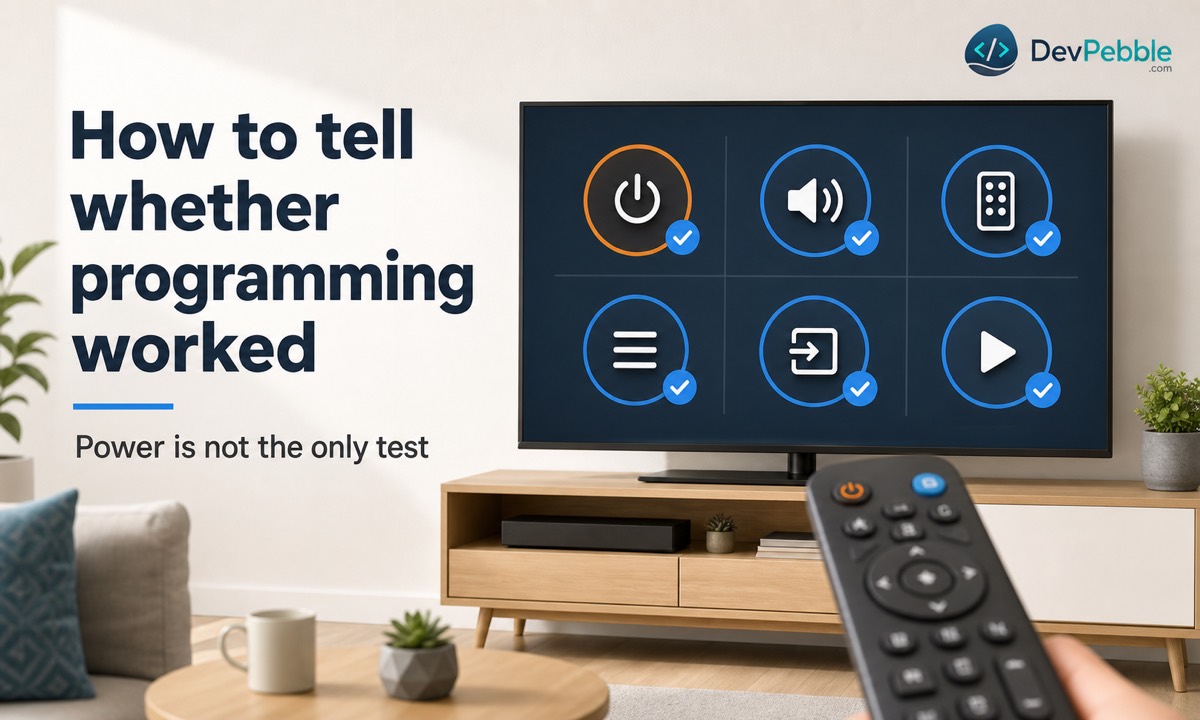
Don't judge success by the power button alone. Power responds first because it's a simple signal shared across many codes for a brand, while functions like input switching and menu navigation need a more precisely matched code. So test volume, mute, channel, input, menu, directional navigation, guide, and playback where they apply. If several important buttons stay dead, move on to the next code for your brand instead of fighting one that's incomplete.
Troubleshooting RCA universal remote programming
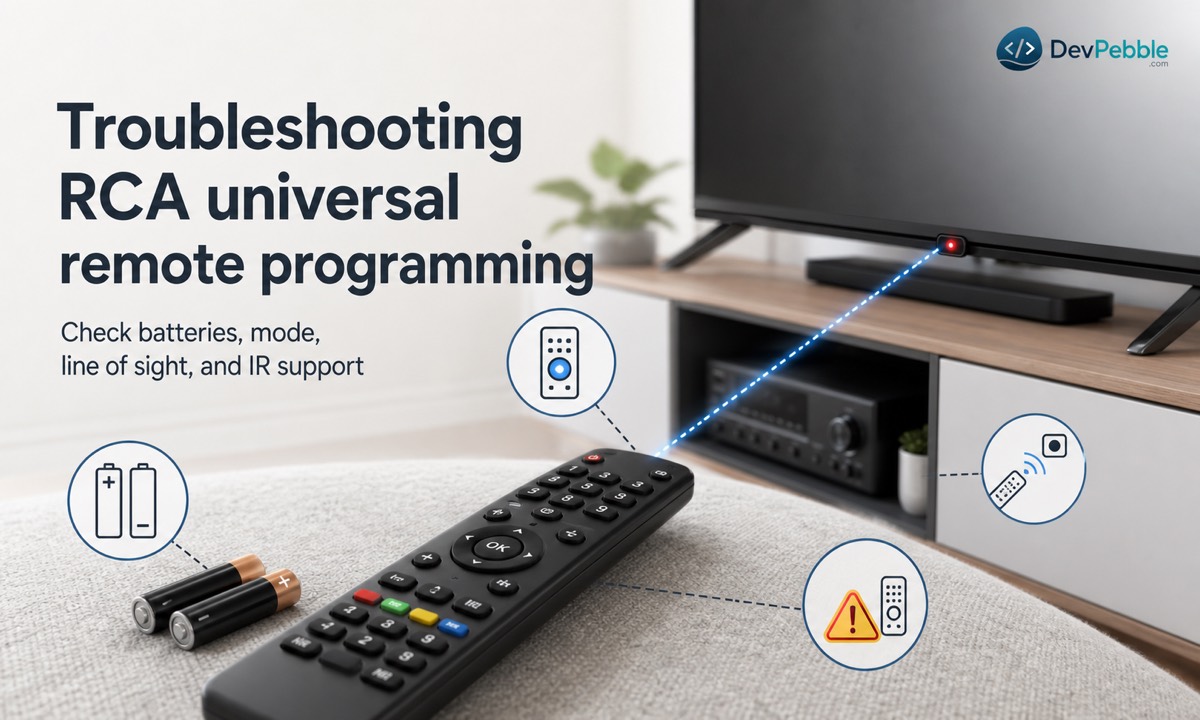
When setup won't cooperate, the cause is usually one of a handful of things. Start here:
| Problem | Likely cause | Fix | |---|---|---| | Indicator light won't turn on | Dead or misaligned batteries | Replace batteries and check polarity | | Code is rejected | Wrong code list for your revision | Reconfirm model and revision, then recheck the list | | Device doesn't respond | Wrong mode selected, or device off | Reselect the correct mode button and power the device on | | Only power works | Partially compatible code | Try the next code for the brand | | Auto search finds nothing | Searched too fast, or no IR support | Restart slowly, or confirm the device accepts IR | | Worked before, now doesn't | Weak batteries or an accidental reset | Replace batteries; reprogram if codes cleared | | Volume controls the wrong device | Punch-through or wrong mode active | Check punch-through, or switch modes |
A few of these deserve a closer look.
Confirm the device mode first. Commands sent in the wrong mode never reach the device, no matter how correct the code is, so make sure TV, SAT/CBL, DVD, or AUX is selected before blaming the code.
Mind the line of sight. Infrared needs a mostly clear, direct path to the device's sensor. Furniture, a closed glass cabinet, or standing too far away can block the signal even when the remote and code are both fine.
Test whether the remote is transmitting at all. Point the emitter at your phone's camera and press a button while watching the screen. A flashing light means it's sending a signal. If you see nothing, try the front-facing camera, since many rear cameras now filter out infrared. This only proves the remote transmits, not that the code is right.
And confirm the device even accepts IR. Newer streaming players and certain smart TV features rely on Wi-Fi or Bluetooth. If a function refuses to respond no matter what, verify that infrared control exists before troubleshooting further.
Resetting an RCA universal remote
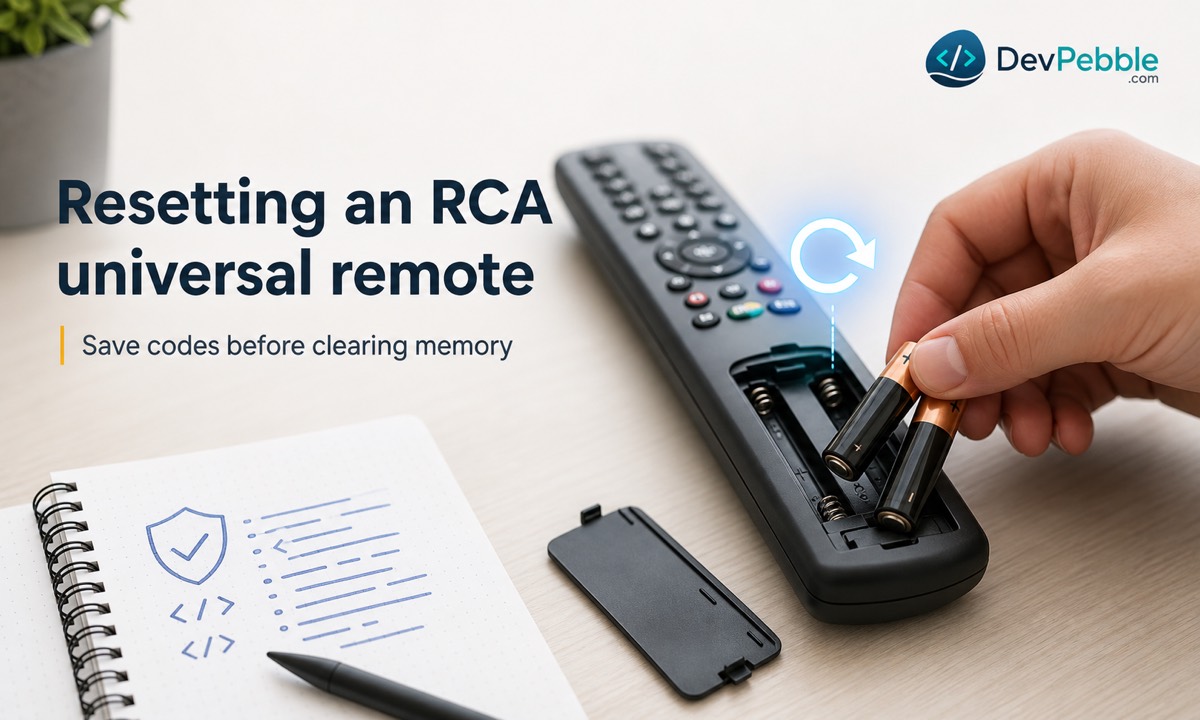
A soft reset, often just pulling and reinserting the batteries, can clear a temporary glitch, and on some models it does this without wiping your programmed codes. A full factory reset usually clears every stored code and returns the remote to its original settings. The exact steps differ by model, so check your manual before assuming which one you're doing.
Whether pulling batteries erases codes depends on the remote. Some keep them in memory without power; others lose them after a short time. If you're not sure, record your working codes first. After any reset that clears codes, you'll reprogram with direct entry or a code search again, which goes much faster with that list on hand.
The bottom line
Most RCA universal remote programming problems come down to a skipped step, not a broken remote. Identify your model and revision, pull the matching code list, and start with direct code entry if you have a code. If you don't, brand or auto code search will get you there. Once a code is in, test every major button rather than trusting the power light, and jot down whatever works so you're covered after the next reset. When something won't respond, work through the usual suspects one at a time: batteries, device mode, line of sight, and whether the device even accepts infrared. A little patience is usually all it takes to run your whole setup from one remote.